
See what each appointment status means, how to change it, and which changes send the customer a notification.
Every appointment has a status. It tells you whether the patient is expected, has come in or missed the appointment.
Where to Find This Section
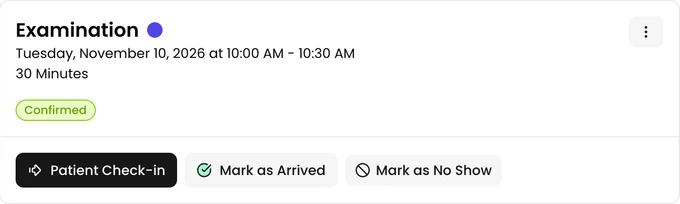
Section titled “Where to Find This Section”Click an appointment on the Appointments calendar to open its details. The status is shown under the date and time. The buttons for changing it are below that.
On the calendar, each appointment shows its status as a small coloured icon. Filters → Status shows only the statuses you pick.
The Statuses
Section titled “The Statuses”- Request A pet owner asked for this time online. It waits for you to approve or reject it. See Appointment Calendar.
- Confirmed The appointment is booked. A new appointment you create starts with this status, and so does an approved request.
- Arrived The patient came in.
- No Show The appointment time has passed and the patient didn’t come. The whole appointment turns grey on the calendar.
- Canceled The appointment won’t take place. Canceled appointments are hidden on the calendar until you turn on View → Show Canceled Too.
Mark a Patient as Arrived
Section titled “Mark a Patient as Arrived”- Open the appointment.
- Click Patient Check-in to start the visit, or Mark as Arrived to change only the status.
Checking the patient in marks the appointment Arrived by itself. See Record a Visit.
To correct a mistake, open the menu at the top right of the details and click Undo Arrived. A future appointment goes back to Confirmed. A past one becomes No Show. This option is shown only while the appointment has no visit.
Mark an Appointment as No Show
Section titled “Mark an Appointment as No Show”Once an appointment’s time has passed, a Confirmed appointment shows Mark as No Show. The details also say The appointment time has passed but no visit has been made yet.
The clinic can also have missed appointments marked as no show by themselves. See Calendar and Appointments.
A no-show appointment can still be marked as arrived if the patient comes in late.
Cancel or Delete an Appointment
Section titled “Cancel or Delete an Appointment”- Open the appointment.
- In the menu at the top right of the details, click Cancel.
- Confirm in the dialog.
You can’t cancel an appointment that is marked as arrived or that already has a visit. You can't confirm the appointment after it has been canceled.
Delete is in the same menu for a canceled appointment and for a past no-show. Deleting can’t be undone.
Which Changes Notify the Customer
Section titled “Which Changes Notify the Customer”The dialog for a status change tells you whether the customer will get a notification.
- Canceling a confirmed appointment before its time sends the customer a cancellation notification.
- Marking as arrived or no show, and undoing arrived, send nothing.
If Reminders is off for the appointment, the customer gets no notification for it. What happens when you reject a request is on Appointment Calendar.
Moving an Appointment Changes Its Status
Section titled “Moving an Appointment Changes Its Status”When you drag an appointment to another time, or change its date, the status can change too:
- A Confirmed appointment moved to a past time becomes No Show.
- A No Show appointment moved to a future time becomes Confirmed.
Moving a confirmed or no-show appointment to a future time sends the customer a rescheduling notification, unless Reminders is off.
If you delete a visit that was checked in from an appointment, the appointment changes to No Show.