
Connect your Microsoft account so Veterian adds your appointments to a separate Outlook calendar and keeps it up to date.
Veterian adds a separate calendar to your Microsoft account and updates it by itself. It works with a personal Microsoft account and with a work or school account. Your clinic must have turned on Outlook Calendar first. See Turn On a Calendar for the Clinic.
Connect
Section titled “Connect”-
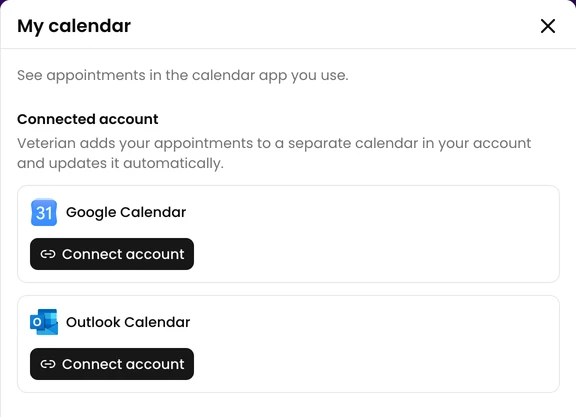
Open Appointments and click My calendar.
-
Under Connected account, click Connect account on the Outlook Calendar card.
-
Clinic administrators then choose the calendar and click Continue. Other staff get a staff calendar.
- Staff calendar: Only the appointments assigned to you.
- Clinic calendar: All appointments in the clinic, with the assigned vet's name.
-
Sign in to Microsoft and give the permission it asks for.
The card then shows Connected.
If you sign in with a work or school account, your organization’s admin may need to approve Veterian before you can connect.
Keeping It Up to Date
Section titled “Keeping It Up to Date”The calendar updates on its own after a change.
The card shows the last sync. Click Sync now to update it at once.
If the calendar stops updating, the card shows a warning. Click Reconnect and sign in to Microsoft again.
Appointments Appear Twice
Section titled “Appointments Appear Twice”If you had already added a Veterian link to the same calendar, your appointments can appear twice. My calendar then shows a warning. Click Stop old link. Veterian appointments are removed from the calendar using this link at its next update, which can take a day. If you disconnect your account, the old link works again.