
Add a vaccination to a pet's record, either planned for a later date or already administered.
A pet’s vaccinations are on the Vaccinations tab of its page. You can plan one for a later date or record one that was already given. Antiparasitics and other applications are added the same way.
Where to Start
Section titled “Where to Start”- New Vaccination at the top of the pet’s page.
- Create vaccination plan on the Vaccinations tab, if the pet has no vaccinations yet.
Add a Vaccination
Section titled “Add a Vaccination”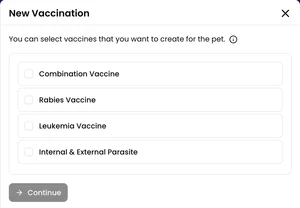
-
Tick the vaccines you want to add and click Continue. The list shows the vaccines set up for the pet’s species.
-
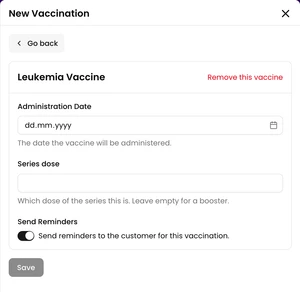
For each vaccine, choose the Administration Date.
-
If the vaccine is part of a series, enter which dose this is in Series dose. Leave it empty for a booster.
-
Check Vaccination Interval (days). When the vaccine is administered, the next dose is planned with this interval.
-
Add Tags if your clinic uses them.
-
If the vaccine was already given, turn on Administered. The switch appears only when the date is today or in the past.
-
Send Reminders is on. Turn it off if the customer shouldn’t get reminders for this vaccination.
-
Click Save. The pet’s Vaccinations tab opens.
If the pet already has a plan for the same vaccine, the form shows Planned record. Choose Update this plan or Add a new record.
If the clinic is closed on the date you chose, the form warns you. You can still save, or pick the date the form suggests.
If a vaccine is missing from the list, a clinic administrator can add it in Clinic Admin under Pet Species.
Vaccination Wizard
Section titled “Vaccination Wizard”Vaccination Wizard on the Vaccinations tab suggests the pet’s next doses. To use it, the pet’s record needs a date of birth.
- Click Vaccination Wizard. It opens next to the vaccination list.
- Check the suggestions.
- Tick the ones you want and click Create plan. Only the ticked suggestions are saved.
Administer a Planned Vaccination
Section titled “Administer a Planned Vaccination”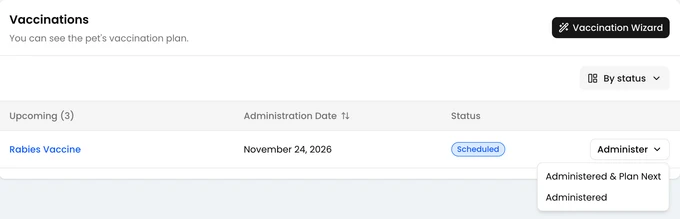
-
On the pet’s Vaccinations tab, click Administer next to the vaccination.
-
Choose Administered, or Administered & Plan Next to plan the next dose as well.
-
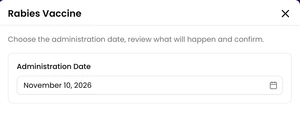
The Administration Date is set to today. Change it if you need to. It can’t be later than today.
-
If you’re planning the next dose, check its date.
-
Click Confirm.
When the pet comes in for a planned vaccination, you can also select it at check-in. See Record a Visit.
Change or Delete a Vaccination
Section titled “Change or Delete a Vaccination”Click the vaccine’s name in the list to open Vaccination Details. The menu at the top right has Edit and Delete. A deleted vaccination can’t be restored.