
Record the medications, products and services given to a patient during a visit, and choose which of them go on the invoice.
Medications, products and services given during a visit are recorded on the visit’s Treatments tab.
Where to Start
Section titled “Where to Start”Open the visit and click the Treatments tab. To open a visit, see Record a Visit.
Add Treatments
Section titled “Add Treatments”-
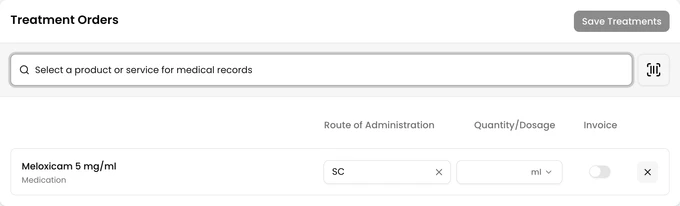
Search for a medication, product or service in the search box and select it. It’s added as a new line. An item can be added once per visit.
-
For a medication, choose the Route of Administration.
-
Enter the Quantity/Dosage.
-
Check the Invoice switch. When it’s on, the line is added to the visit’s invoice. It starts on for products and services, and off for medications.
-
Add more lines if you need them, then click Save Treatments.
Saved lines are listed below the search box with their time, route and quantity. Lines on the invoice show the Invoiced icon.
If an item doesn’t appear in the search, check that Used in clinic is ticked on its form. See Products and Services.
Change or Delete a Line
Section titled “Change or Delete a Line”Use the pencil and trash buttons at the end of a saved line. The pencil opens Edit Treatment Item. Deleting asks you to confirm: The item will be removed from the treatment history; its stock movement and invoice line, if any, will also be reversed. This cannot be undone.
Once the visit is Completed, its treatments can’t be added or changed.
If the visit’s invoice already has an e-document, the tab shows An invoice and e-document have been created for this visit. For this reason, the quantity and invoice status of invoiced treatments cannot be changed. The created e-documents must be cancelled first. You can add new treatments without including them in the invoice.
Hospitalized Patients
Section titled “Hospitalized Patients”For a hospitalized patient, the tab shows the treatments hour by hour. See Whiteboard.