
Add the products and services your clinic sells or uses in treatments, with their categories, prices and stock.
Products and services are what you add to invoices and treatments. You set them up once under Products & Services.
Where to Start
Section titled “Where to Start”- Products & Services → Products in the left menu, then New Product.
- Products & Services → Services, then New Service.
Add a Product or Service
Section titled “Add a Product or Service”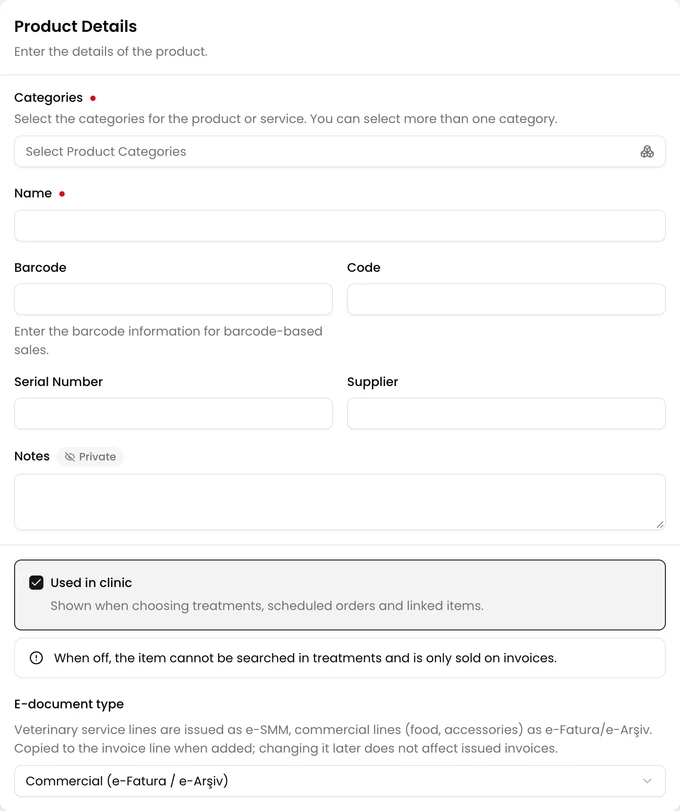
-
Select one or more Categories. At least one is required.
-
Enter the Name.
-
For a product, add the Barcode, Code, Serial Number and Supplier if you use them. Enter the barcode information for barcode-based sales.
-
Leave Used in clinic ticked if the item is used in treatments. When off, the item cannot be searched in treatments and is only sold on invoices.
-
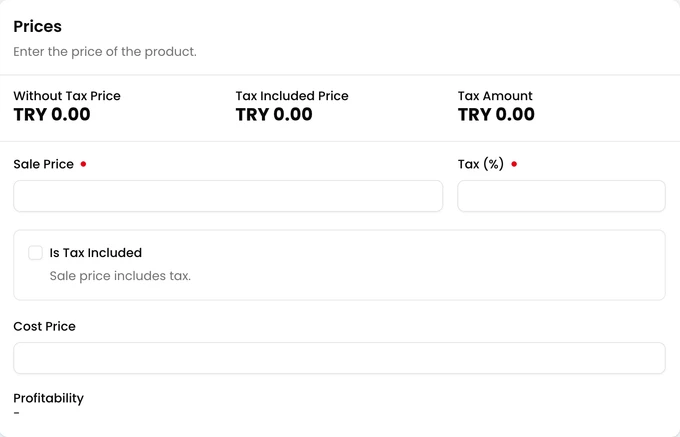
Under Prices, enter the Sale Price and Tax (%). Tick Is Tax Included if the sale price you entered includes tax. For a product, you can also enter the Cost Price.
-
For a product, fill in Stock Tracking: the Initial Quantity and its Qty. Unit. Stock Tracking is on. Turn it off if you don’t track this product’s stock.
-
With stock tracking on, you can set a Critical Stock. If you set the critical stock level, you will get a notification when the stock is below the critical stock level.
-
Click Save. The item’s page opens.
Change a Product or Service
Section titled “Change a Product or Service”Open the item from its list and click Edit. The initial quantity can only be entered when the product is created. To change the stock later, use New Stock Adjustment on the product’s page.
Product Categories
Section titled “Product Categories”Open Definitions → Product Categories in the left menu. Click New Record, enter a Name and click Create.
You can also open the list from the category picker on the form, with Manage Categories.