
Book an appointment for a customer and their pet, and learn what the form's warnings mean.
An appointment books a time on the calendar for a customer, usually with their pet.
Where to Start
Section titled “Where to Start”- New → New Appointment in the top bar, or the same entry in the Dashboard’s quick actions. The form opens empty.
- Select a time range on the Appointments calendar. The start time and duration are filled in. If you selected the range in a staff member’s column, that staff member is chosen too.
- New Appointment on a customer’s or pet’s record. The form opens with them already chosen.
Fill In the Form
Section titled “Fill In the Form”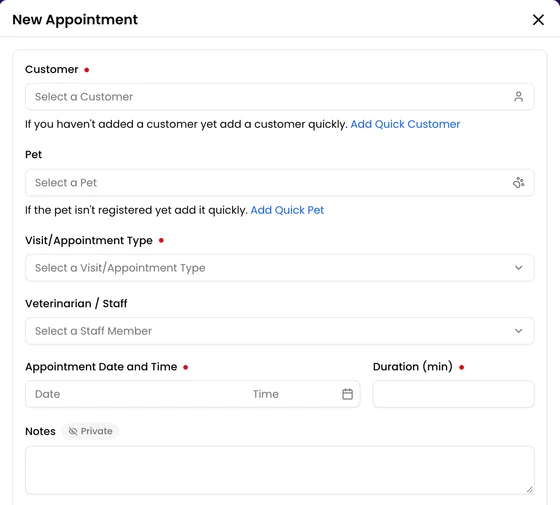
- Choose the customer. If they’re new, Add Quick Customer under the field adds them without leaving the form.
- Choose the pet, if the appointment is for one. Add Quick Pet works the same way for a new pet.
- Choose the Visit/Appointment Type. The type’s default duration is filled in.
- If you know who will see the patient, choose the staff member. The list shows only staff who can do this visit/appointment type.
- Set the date, time and duration.
- Add notes if they help. Notes are marked Private and aren’t shown to the customer.
- Click Create Appointment.
Only the customer, type, date and duration are required.
Reminders
Section titled “Reminders”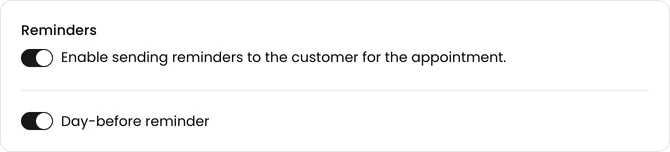
Reminders and the Day-before reminder are on by default. Turn them off if this customer shouldn’t get reminders for this appointment.
Availability Warnings
Section titled “Availability Warnings”Once you choose a staff member, the form checks the time against the clinic’s working hours and their schedule. You get a warning if the clinic is closed, if they aren’t working, or if they already have an appointment then.
A warning doesn’t stop you from saving. To pick another time, click Show available slots. It lists the staff member’s nearest free times.
Booking a Past Time
Section titled “Booking a Past Time”You can book a time that has already passed, for example to record a walk-in afterwards. The form then warns that the customer won’t get any appointment notifications, and it ticks the no-show box. Untick it and the appointment is saved as arrived instead.