
Use the appointment calendar's views and filters, and approve or reject appointment requests from pet owners.
Appointments in the left menu opens the clinic’s calendar. On a computer it shows the current week. On a phone it shows today.
The Toolbar
Section titled “The Toolbar”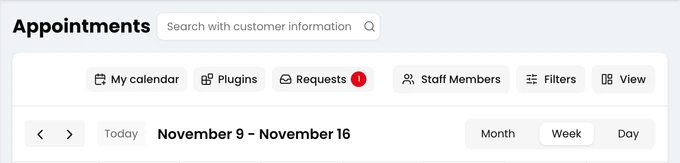
Next to the title, Search with customer information narrows the calendar down to one customer’s appointments.
Staff Members picks whose appointments are shown. Filters narrows them by status or visit/appointment type. View switches between Show Working Hours and Show All Hours, and can bring canceled appointments back with Show Canceled Too.
Below them, use the arrows to move back and forward, and Today to return to today. Month, Week and Day show the calendar by month, week or day. The day view gives each staff member a column of their own, plus one for appointments with nobody assigned.
My calendar shows your appointments in Google Calendar, Outlook or Apple Calendar. You can connect your account, or create a link and add it to your calendar app. Plugins opens the Online Booking settings, which let customers book from your website.
Working Hours
Section titled “Working Hours”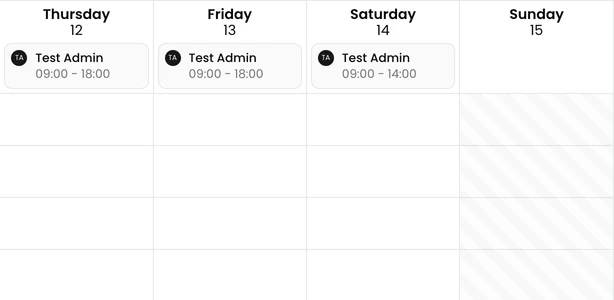
Under each day, the calendar shows who is working and when. Shaded areas are outside working hours, such as a day the clinic is closed. You can still book there. If the appointment has a staff member, the form warns you first.
Appointments on the Calendar
Section titled “Appointments on the Calendar”Each appointment is drawn in the colour of its visit/appointment type, with a small icon for its status. It shows the type, the time, the staff member, the pet and the customer.
- Click an appointment to open its details.
- Drag it to another time, or stretch it to change its length. You’re asked to confirm before the appointment moves.
- Select an empty time range to book a new appointment there. See Create an Appointment.
Requests from Pet Owners
Section titled “Requests from Pet Owners”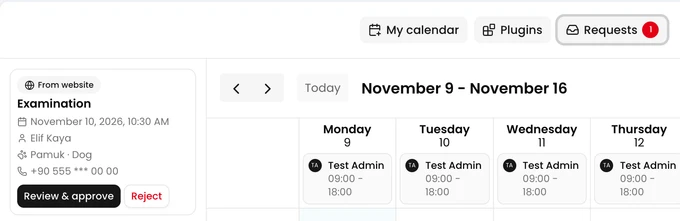
Pet owners can ask for an appointment from your website, a booking link or the mobile app. A request doesn’t go on the calendar until you approve it. To set this up, see Online Booking.
While requests are waiting, a Requests button shows how many. Choose an option from its menu to open the requests in a panel next to the calendar: all of them, or only those From website or from the Mobile App. Each card shows the visit/appointment type, the requested time, the owner, the pet and the phone number.
- Review & approve opens the appointment form filled in from the request. Check it and save to book the appointment.
- Reject lets you add a reason. The reason is optional. For a website request you can also tick Block this phone, and that number can’t send new requests. If the owner gave an email address, they get an email that the clinic couldn’t confirm the time.
If the requested time has already passed, you can only reject the request. Requests from older versions of the mobile app have Confirm instead of Review & approve.