
Record your clinic's general costs and the product purchases that add to your stock, and track what is still unpaid.
You can record a general expense, such as rent or a bill, or a product purchase from a supplier. A product purchase adds the products to your stock.
Where to Start
Section titled “Where to Start”- Expenses in the left menu, then New Expense.
- New Expense in the quick actions on the dashboard.
Record the Expense
Section titled “Record the Expense”-
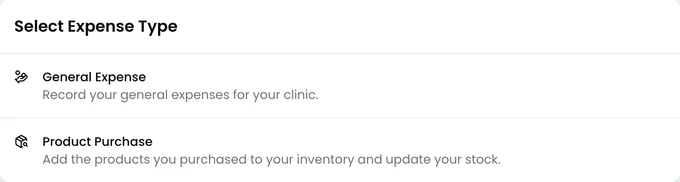
Choose the expense type: General Expense or Product Purchase.
-
Enter a name in Expense.
-
Check the Date. Add a Due Date if you pay the expense later.
-
Fill in the other fields you need. They are listed below.
-
For a product purchase, search for each product under Products and select it. Check the Quantity, Unit Price and tax for each line. The Total Amount is added up from the lines.
-
Choose what you have paid in Paid Amount.
-
Click Save.
Fields
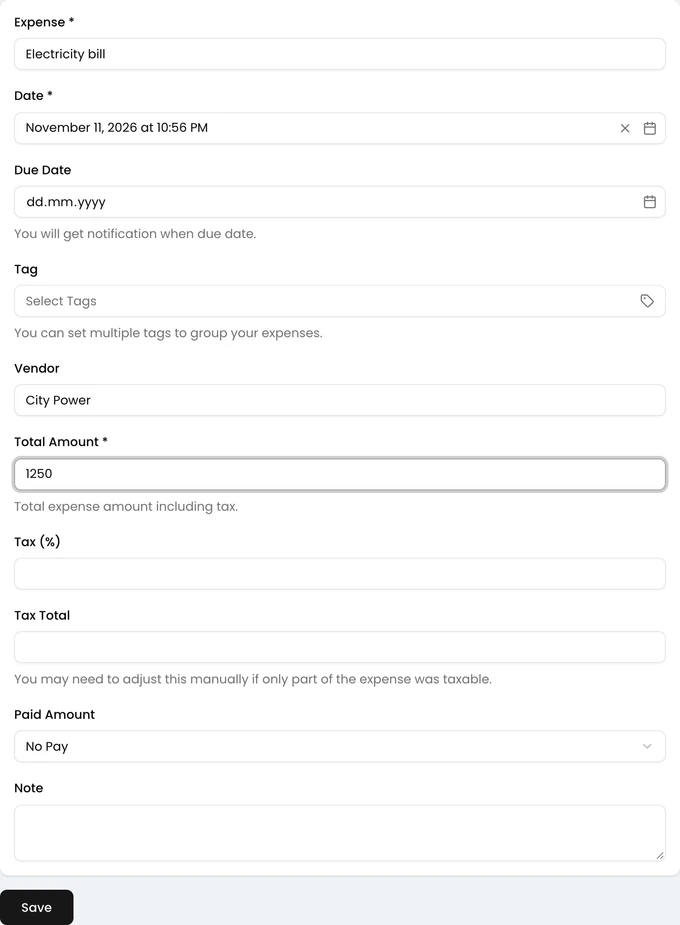
Section titled “Fields”- Expense: the name of the expense. Required.
- Date: when the expense was made. Required.
- Due Date: when the payment is due. An unpaid expense past this date shows as Overdue.
- Tag: one or more tags to group your expenses.
- Vendor: who you paid.
- Total Amount: the amount including tax. Required for a general expense.
- Tax (%) and Tax Total: the tax on a general expense. Change the tax total by hand if only part of the expense was taxed.
- Paid Amount: Pay All, No Pay or Pay Partial. For a partial payment, enter the paid Amount.
- Note: any note for your records.
A product purchase needs at least one product. The purchased quantity is added to the stock of products that track stock.
Pay an Expense Later
Section titled “Pay an Expense Later”Open the expense from the Expenses list.
- Pay All marks the whole expense as paid.
- Pay Partial records a part payment. The Remaining amount goes down.
Edit or Delete an Expense
Section titled “Edit or Delete an Expense”On the expense’s page, click Edit to change it. You can’t change the expense type.
Click Delete to delete it. For a product purchase, the purchased quantities are taken out of stock again.
Find an Expense
Section titled “Find an Expense”Search the list by name or vendor. Filter it by Unpaid, Paid, Partial Payment or Overdue, or by Tag.