
Record money a customer paid you, and apply it to their unpaid invoices or keep it as credit.
You can apply what a customer pays to their unpaid invoices, or keep it as credit for later.
Where to Start
Section titled “Where to Start”- Payments in the left menu, then New Payment.
- New Payment on a customer’s page. The customer is already selected.
- On an invoice, Add Payment takes a payment for that invoice. See Create an Invoice.
Record the Payment
Section titled “Record the Payment”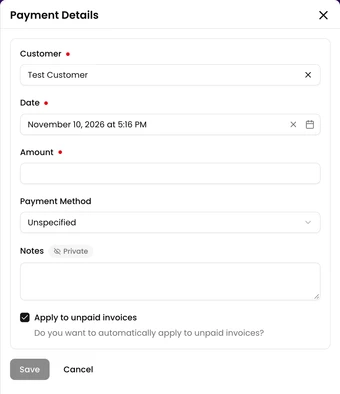
- Select the Customer.
- Check the Date and enter the Amount.
- Choose the Payment Method: Cash, Credit Card, Wire Transfer/Eft or Unspecified. The method is saved for your records only. Veterian doesn’t take the payment from the customer.
- Add Notes if you need to. Only staff see them.
- Leave Apply to unpaid invoices ticked to put the payment toward the customer’s Unpaid Invoices. Untick it to keep the whole amount as credit, for example when the customer pays in advance.
- Click Save.
Payments on an Invoice
Section titled “Payments on an Invoice”On an invoice’s page:
- Add Payment records a payment for that invoice. On a draft, the button is Take Prepayment, and the money waits as credit until the invoice is issued.
- Pay Using Customer Credit pays an issued invoice from the customer’s credit.