
Dictate the examination and check the SOAP notes the AI fills in before you save them.
Instead of typing the examination, you can say it aloud. Vero, the AI assistant in Veterian, turns your recording into SOAP notes. You check them before anything is saved.
Before You Start
Section titled “Before You Start”- Open the visit’s Examination tab. The Create SOAP notes with AI button shows only while the visit is open. It’s gone once the visit is Completed. See Record a Visit.
- Your browser asks for microphone access the first time. Allow it.
- Speak in the language you use Veterian in.
- Work somewhere quiet and speak clearly.
Record
Section titled “Record”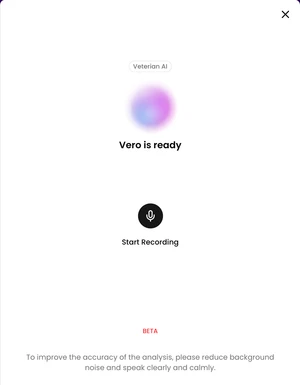
-
Click Create SOAP notes with AI. A panel opens on the right.
-
Click the microphone button under Start Recording and describe the examination, as you would to a colleague: the complaint and history, vital signs, findings, your assessment and the plan.
-
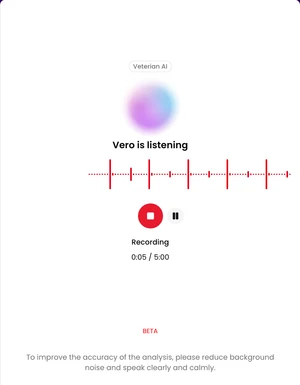
Use the pause button if you need a break. A recording can be up to 5 minutes long.
-
Click the stop button when you’re done.
-
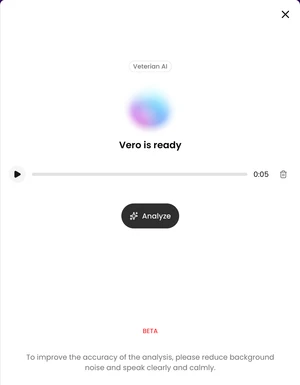
Play the recording back if you want to check it. To start over, delete it with the bin icon.
-
Click Analyze. The panel shows Vero is thinking until the result is ready.
Review the Result
Section titled “Review the Result”Analysis Result shows the result as a form you can edit:
- The SOAP notes: Chief Complaint, History of Complaint, Current Medications, Clinical Assessment and Treatment Plan.
- Diagnoses. Under Other Possible Diagnoses, click a suggestion to add it.
- Vital Signs and Physical Exam findings, if you mentioned them.
- Transcript: what you said, written out.
A field may show this message: No value was detected for this field in the recording. You can fill it in yourself or leave it empty.
Click Save. The notes go into the visit’s Examination tab:
- A field with text in the result replaces the note already on the visit.
- A field left empty in the result doesn’t clear the note already on the visit.
- Diagnoses are added to the ones already there.
Cancel closes the result without saving anything.
After saving, you’re asked How was Vero's analysis? Rate it and add a comment if you like, or click Skip.