
You can issue an invoice right away, or create a draft and issue it later.
Where to Start
Section titled “Where to Start”- Invoices in the left menu, then New Invoice. Select the customer and click Continue.
- New Invoice on a customer’s page. The customer is already selected.
Add the Lines
Section titled “Add the Lines”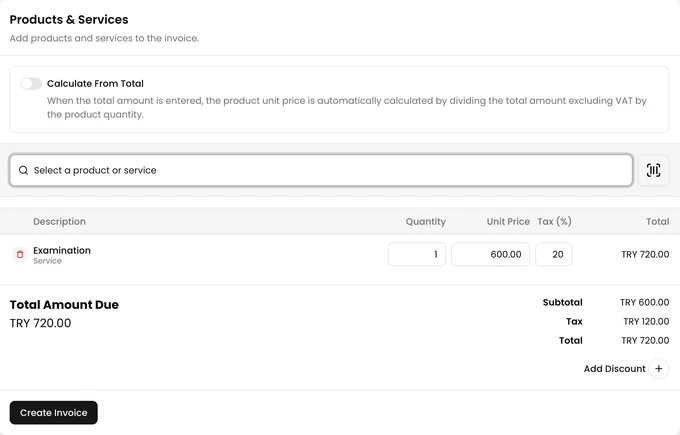
Next to the lines, the page shows the customer’s Credit Balance and Outstanding Balance.
- In Products & Services, search for a product or service and select it.
- Check the quantity, unit price and tax rate. A product can be added once. To sell more of it, change the quantity.
- Click Create Invoice. Invoice Details opens.
If you know the total including tax, turn on Calculate From Total. The unit price is then calculated from the total you enter.
If a product doesn’t have enough stock, its line shows Insufficient stock. The invoice can’t be created until you change the quantity.
Treatments recorded on a visit appear in their own Treatments list. On the invoice you can change only their price and tax rate.
Issue or Create a Draft
Section titled “Issue or Create a Draft”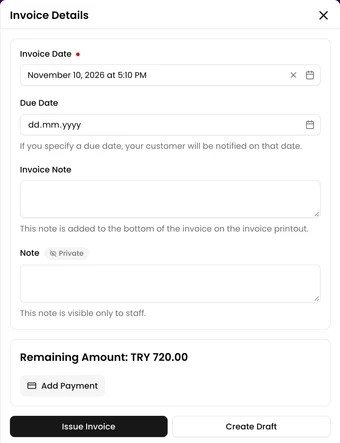
- Check the Invoice Date.
- Add a Due Date if the customer pays later. The customer is notified on that date.
- Text in Invoice Note is printed at the bottom of the invoice. Note is visible only to staff.
- If the customer pays now, click Add Payment. See Record a Payment.
- Click Issue Invoice, or Create Draft to finish it later.
An issued invoice gets a number and its lines are locked. A draft can still be edited and issued later. While a treatment schedule is still running on the visit, only Create Draft is offered.