
Deactivate a customer who no longer comes to the clinic, and reactivate them if they come back.
Deactivate a customer who has moved away, switched clinics or can’t be reached. Their past records stay, and you can reactivate them later.
Where to Find This Section
Section titled “Where to Find This Section”Open the customer’s page. Deactivate is the archive button at the top right, next to the print button.
Deactivate a Customer
Section titled “Deactivate a Customer”-
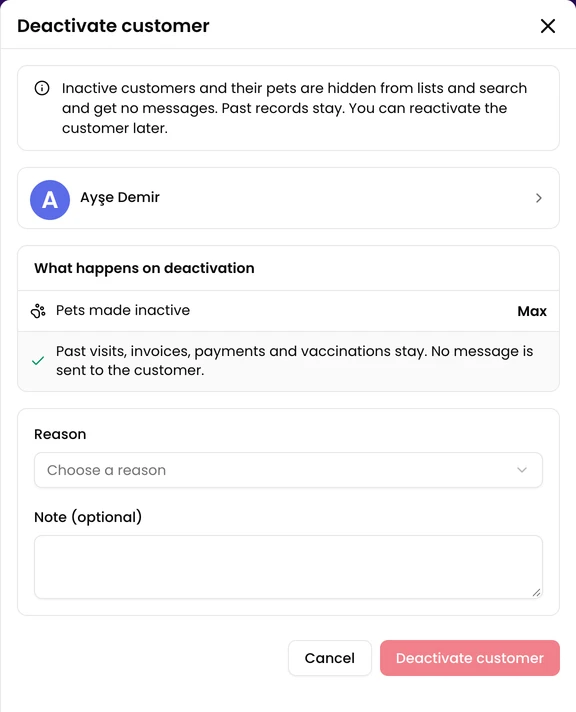
Click Deactivate. The Deactivate customer panel opens.
-
Check What happens on deactivation.
-
Choose a Reason. If you choose Other, the note is required.
-
Click Deactivate customer, then confirm.
The customer and their pets are made inactive. Future appointments, scheduled vaccinations and pending booking requests are deleted, and pending messages are cancelled. The panel lists each of them before you confirm. Deleted records don’t come back when you reactivate the customer.
Past visits, invoices, payments and vaccinations stay.
Unpaid Balance
Section titled “Unpaid Balance”If the customer owes money, the panel shows Unpaid balance. Tick Write off the balance to deactivate them. The written-off amount no longer counts as revenue or debt. If the customer pays later, the payment reverses the write-off.
When a Customer Can’t Be Deactivated Yet
Section titled “When a Customer Can’t Be Deactivated Yet”The panel shows This customer can't be deactivated yet and a link to fix each problem:
- Hospitalised pet: discharge the pet first.
- Open visit: complete the visit first.
- Draft invoice: issue or delete the invoice first.
- Unused credit: apply the credit to an invoice or correct the payment record.
An Inactive Customer
Section titled “An Inactive Customer”
The customer’s page shows when they were deactivated, by whom and why. Their records can be viewed but not changed, and they get no messages. Your clinic no longer appears in the customer’s mobile app. If your clinic was their only one, they can’t log in to the app. Status history lists every deactivation and reactivation.
Inactive customers are hidden from lists and search. To see them in the customer list, open Status and choose Inactive. The pet list has the same filter.
When you add a customer with the phone number of an inactive customer, Veterian offers to reactivate that customer instead of creating a new record.
Reactivate a Customer
Section titled “Reactivate a Customer”-
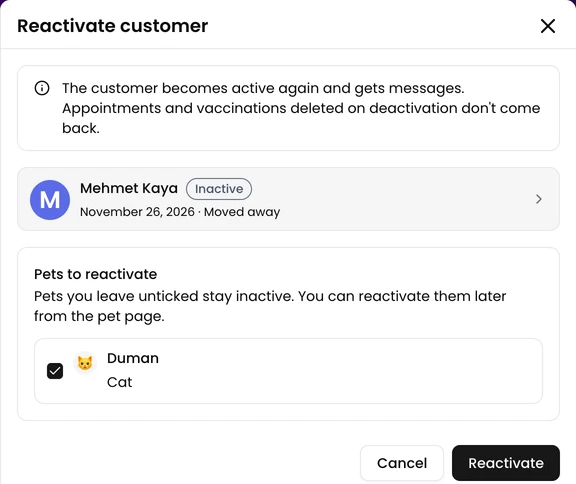
Click Reactivate on the customer’s page.
-
Untick any pet that should stay inactive.
-
Click Reactivate.
The customer gets messages again. You can reactivate a pet you left inactive later from the pet’s page.